Getting started

From download to your first show

Install it, play some music, and Trippin does the rest. Here is everything a new user needs, with answers to the common questions at the end.

Install

Run the installer for Windows, or the package for macOS. Details

Play some music

Start your DJ software or Spotify. Trippin listens to your computer's audio and starts moving. Details

Go full screen

Drag the visuals window to your projector or stream, and press F. Details

1 · Install

Install Trippin

Download the latest version from the download page.

Windows

  • Download Trippin-Setup (the .exe) and run it.
  • Your settings are saved to %APPDATA%\Trippin\trippin.json.
  • To update, run the newer installer.

macOS

  • Download Trippin-macOS (the .pkg) and run it. It installs to Applications, and a newer package upgrades it in place.
  • Your settings, timelines and the downloaded engine are kept in ~/Library/Application Support/Trippin.
  • If macOS blocks it, try to open it once, then allow it in System Settings → Privacy & Security → Open Anyway.
  • The first time you run it, macOS asks once for screen / system-audio recording permission (macOS 13 or later). Allow it, because that is how Trippin hears your music.

Trippin is built to hold 60 fps on an RTX 3060 or an Apple M2. On weaker graphics some of the heavy 3D scenes are switched off for you, and the performance check works out which.

2 · First run

Play music, go full screen

Trippin opens two windows: the visuals, and a control panel beside them.

  • Play something. Trippin captures whatever your computer is playing (Windows system audio, or the macOS system output mix), so no cables or setup are needed. The panel shows the tempo and the beat as soon as it hears music. A no signal tag means it hears nothing.
  • Go full screen. Drag the visuals window to your projector, LED wall or capture display, then press F. Esc leaves full screen, and closing the window quits. F1 hides or shows the control panel.
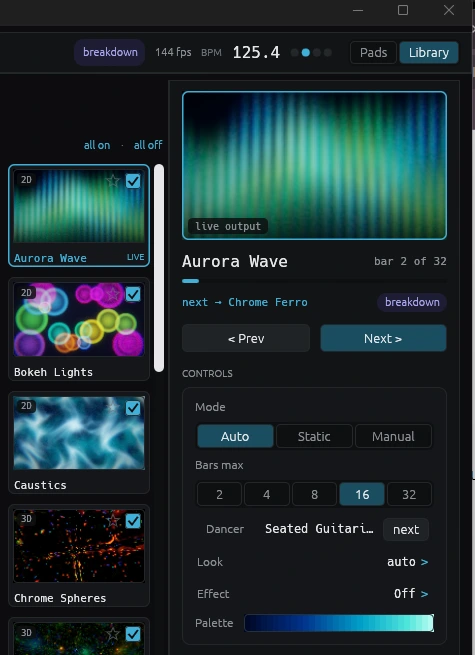
  • Pick a mode. Auto cuts scenes every phrase and early on drops. Static holds the current scene while the dancer still changes. Manual changes nothing by itself.
  • Browse the library. On the Perform tab, click a scene to preview it, star favourites, and tick scenes in or out of the auto-pilot's rotation.
DJ software going straight to a controller? If Serato or similar sends audio directly to your controller's own USB interface, it never reaches the system audio. Open Settings → Audio in and pick the controller's input instead.
The control panel while a track plays, showing tempo, the live scene, the next scene and the Auto mode controls

The Perform tab while a track plays.

Handy keys

The keys worth learning first

Every key can be changed on the Keys tab. Click rebind, then press a key.

→ ←Next / previous scene
A H MMode: auto / static (hold) / manual
DDancer on / off
BBlackout: fade to black and back
ZStrobe on / off. It flashes on the live drum hits.
FFull screen on / off
SpaceMark this beat as the downbeat, if the bar's "one" is in the wrong place
[ ]Latency −5 ms / +5 ms, if the visuals land early or late
K · JSave a clip of the last moments · record the whole set
T · GTimeline play / pause · timeline record on / off
NShow the now-playing card again

Any action can also sit on a MIDI pad. See MIDI mapping.

3 · Performance check

Check what your machine can run

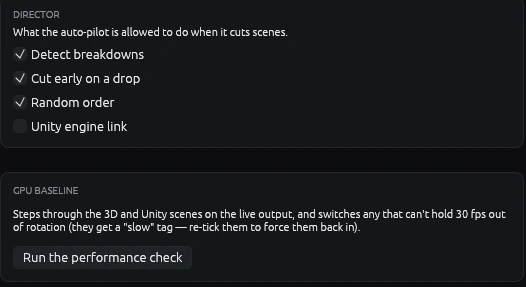
Do this once, before your first show. It finds the scenes your GPU can't keep smooth, so the auto-pilot stops picking them.

  1. Open the Settings tab.
  2. Find the GPU baseline card and press Run the performance check.
  3. Wait while it steps through the heavy 3D scenes. It runs on the live output, so the visuals will cycle through scenes. Run it before you go live, not during a set.
  4. Anything that can't hold 30 fps is taken out of rotation and tagged slow. To force one back in, tick it again in the library.
Using the Unity engine shows? Switch on Unity engine link in Settings (the Director card) first, so they can be measured too. Press the button again at any time to cancel, and your scene is restored. The result is saved for your machine, so you only need to repeat it after changing GPU or drivers.
The Settings tab: the Director card and the GPU baseline card with the Run the performance check button
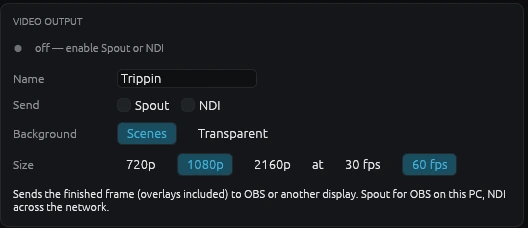
The Video output card: Spout and NDI, scenes or transparent background, 720p to 2160p, 30 or 60 fps

The Video output card on the Stream tab.

4 · Go live

Send it to OBS

Streaming? Send Trippin's picture to OBS as a video source.

  1. On the Stream tab, find Video output and tick Spout (Windows, same PC) or NDI (over the network, and the choice on macOS).
  2. Pick a size (720p to 2160p) and 30 or 60 fps.
  3. In OBS, add a Spout2 Capture source (it comes from the free Spout2 plugin) or an NDI Source.
NDI needs its free runtime. On Windows, run winget install NDI.NDIRuntime. On a Mac, install NDI Tools. Trippin works without it, but NDI output won't. For a transparent background, to layer the dancer over your camera, choose Transparent under Background.
5 · Timeline editor

Script a whole set

Load a track, lay out the show, and let it play itself. You can build it by hand, record it live, or have an AI draft it.

1 · Open it

Go to the Timeline tab and press Open timeline editor, or press F2. Saved shows are listed on that tab; click one to load it.

2 · Load a song

Use File → Add song… in the editor, or drag an mp3, flac, wav, m4a or ogg onto either window. Trippin analyses it and draws the waveform, a beat and bar grid, and a playhead.

3 · Add cues

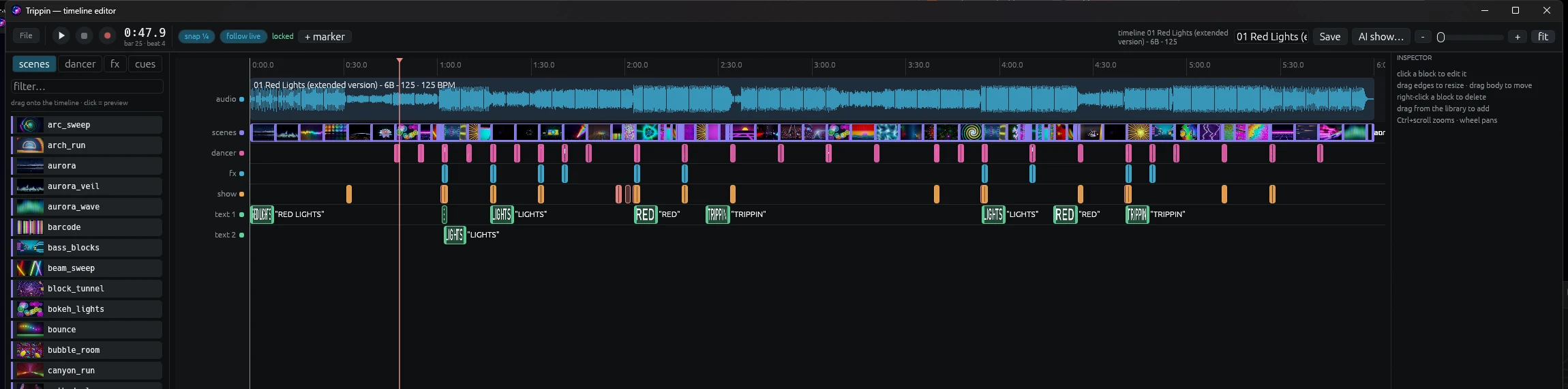
Drag scenes, dancer routines, effects and text from the library on the left onto the strip. They snap to the beat. Click a block to edit it, drag its edges to resize, right-click to delete. Ctrl+scroll zooms and the wheel pans.

4 · Play it

Press T or the play button. The track plays through your speakers and through Trippin, so the visuals react to it. Click empty space on the strip to move the playhead.

5 · Or record it

Press G to arm recording, play the track, and perform with your hotkeys or pads. Every move lands on the strip as a cue. Then tweak it.

6 · Save it

Press Save. Your show is stored in a timelines folder next to your settings, and drops back in when you load it.

The timeline editor showing a whole show: audio waveform, scene thumbnails, and lanes for dancer, effects, show cues and text

A whole show in the editor. Click the image to zoom in.

Let an AI draft it

The AI show… button in the editor writes the cue list for you from the real structure of your track. You supply your own key, and you can always edit the result.

  1. Open Settings → AI show builder. Pick a provider (Anthropic, OpenAI, Gemini, or any OpenAI-compatible service including a local Ollama), a model, and paste your API key. Or leave the key blank and set the provider's usual environment variable.
  2. Load your song in the editor, then press AI show….
  3. Review what it built and adjust it. The result is ordinary cues.

Follow live

Playing the same song through your DJ software? Turn on follow live in the editor. Trippin matches the live audio against the loaded track and fires your show in step with the deck.

It needs the same song to be playing. If the playhead jumps around, check that the track in the editor is the one you're actually playing.

More on the editor and the AI builder on the features page.

FAQ

Common questions

It says "no signal". What do I do?
  • Make sure something is actually playing, and not muted.
  • If your DJ software sends audio straight to a controller's USB interface, pick that controller under Settings → Audio in.
  • On a Mac, check you allowed the screen / system-audio recording permission when macOS asked. You can change it in System Settings → Privacy & Security.
The visuals are choppy or the app feels slow.

Run the performance check in Settings. It switches off the scenes your GPU can't hold at 30 fps. You can also untick heavy 3D scenes in the library by hand (filter by 3D). Closing other apps that use the GPU helps too.

The beat or the bar's "one" looks wrong.
  • Tap Space on the first beat of a bar to mark the downbeat.
  • If the visuals land slightly early or late, nudge the latency with [ and ] (5 ms each press), or use the slider in Settings.
  • Keep Neural beat tracking on in Settings (it is on by default). It downloads a model of about 80 MB once, in the background, and finds tempo and the bar's "one" far more reliably.
The visuals go calm and stop flashing in the middle of a song.

That is breakdown mode, and it is on purpose. When the drums drop out for a moment, the flashes melt into a glow and the camera slows. When the kicks come back, so do the beats, and the drums slamming back in count as a drop. You can turn breakdown detection off in Settings → Director.

Which DJ software does it work with?

All of it, for the visuals. Trippin listens to your computer's audio, so it doesn't matter what is playing.

For the now-playing card, which shows the track name, Trippin reads Serato, VirtualDJ, rekordbox, Mixxx, and anything that reports to the operating system's media controls (Spotify, Apple Music, a browser, most media players). Any other tool can feed a text file. Traktor's track names aren't read directly yet.

Can I run Trippin on a different computer from my DJ software?

Yes. Install the Trippin Agent on the DJ computer. It tells your Trippin machine what's playing, and the visuals come back to OBS over NDI. Turn on the remote in Trippin's Settings first.

Can I control it from my phone?

Yes. Turn on iOS app remote in Settings, then use the Trippin Remote app on an iPhone or iPad on the same network, or browse to http://<your-computer's-ip>:9138 from any device. OSC controllers such as TouchOSC work too.

How do I save a clip for social media?

Install ffmpeg (winget install ffmpeg on Windows, brew install ffmpeg on a Mac), then press K to save the last minute, or J to record your whole set. Clips can be 16:9 or vertical 9:16, and go to your Videos folder (Movies on a Mac) in a Trippin folder.

What are the Unity engine shows?

An optional set of 40 extra shows with real-time lighting and geometry. Switch on Unity engine link in Settings and Trippin downloads the engine the first time (about 40 MB). After that it runs in the background and closes when Trippin does. See the scenes page.

Is my music uploaded anywhere?

No. Audio is analysed on your computer. The AI show builder is optional, uses your own key, and sends only a numeric summary of the track and its title, never the audio.

Where are my settings, shows and clips?
  • Windows: settings in %APPDATA%\Trippin\trippin.json, with your saved shows in a timelines folder beside it.
  • macOS: ~/Library/Application Support/Trippin.
  • Clips and recordings: Videos/Trippin (Movies/Trippin on a Mac).
How do I update, and where do I report a problem?

Run the newer installer or package. Your settings and shows are kept. Read what changed on the what's new page. For problems or ideas, open an issue on GitHub.

Download Trippin